Inbox
The Inbox is where you can review all of the matches your Monitors have found, manage your engagement workflow, generate AI reply drafts, and provide feedback so our AI can continuously improve your Monitors.
Match Workflow & Rating Matches
Each match in your Inbox follows a streamlined workflow so you and your team can track what needs attention and train your Monitor:
- Pending (
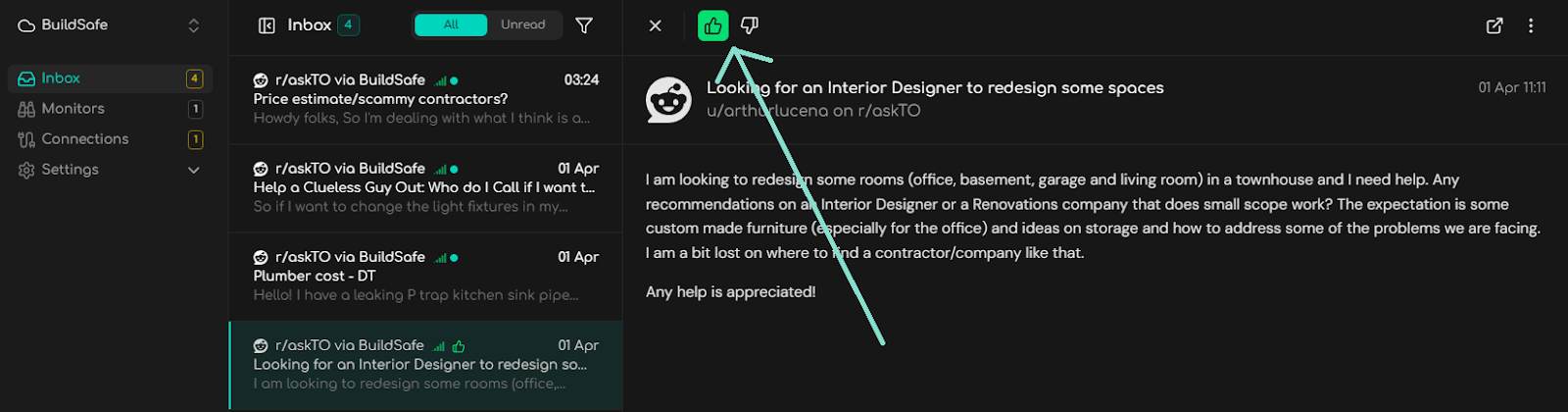
OPEN): Newly discovered matches start as Pending. From here, you can click Accept Match or Reject Match. - Accepted (
ACCEPT): Indicates a good match worth engaging with. Accepting a match gives it a positive rating and unlocks the Mark as Replied action once you've engaged on the platform. - Replied (
REPLY): Tracks matches where you or your team have posted a response. - Rejected (
REJECT): Marks the post as a poor match. When rejecting a match, you can optionally enter a brief Reason explaining why it wasn't relevant.
You can also click the AI Feedback / Explore Match icon in the match header to chat with Advite's AI about why a post matched and refine your Monitor's instructions directly from that example.
Rating matches, in addition to Refining your Monitor, is the fastest way to dial in your Monitor's precision.
Rating Matches in Slack
If you have set up a Connection to Slack with your Monitor, you can use Slack emoji reactions to rate your matches directly from Slack:
- Use the 👍 or ✅ reaction on messages for content you like.
- Use the 👎 or ❌ reaction on messages for content you don’t like.
Generate Replies
With Advite, you can draft context-aware replies right inside the Inbox using Generate Reply.
How it Works:
- Choose a Brand Voice: By default, the Inbox uses the Default Voice configured on the Monitor (or the built-in
Genericvoice). You can switch between any of your custom Brand Voices using the voice selector dropdown. - Generate & Refine: Click Generate Reply to draft a response grounded in the post's content, your Brand Voice's knowledge and style guidelines, and our Best Engagement Practices.
- Edit or Chat-Refine: You can edit the generated reply directly in the text editor, click Refine to ask the AI to adjust the draft (e.g., "make it shorter" or "focus more on pricing"), and copy it in one click before opening the post link.
Filtering & Non-Matched Posts
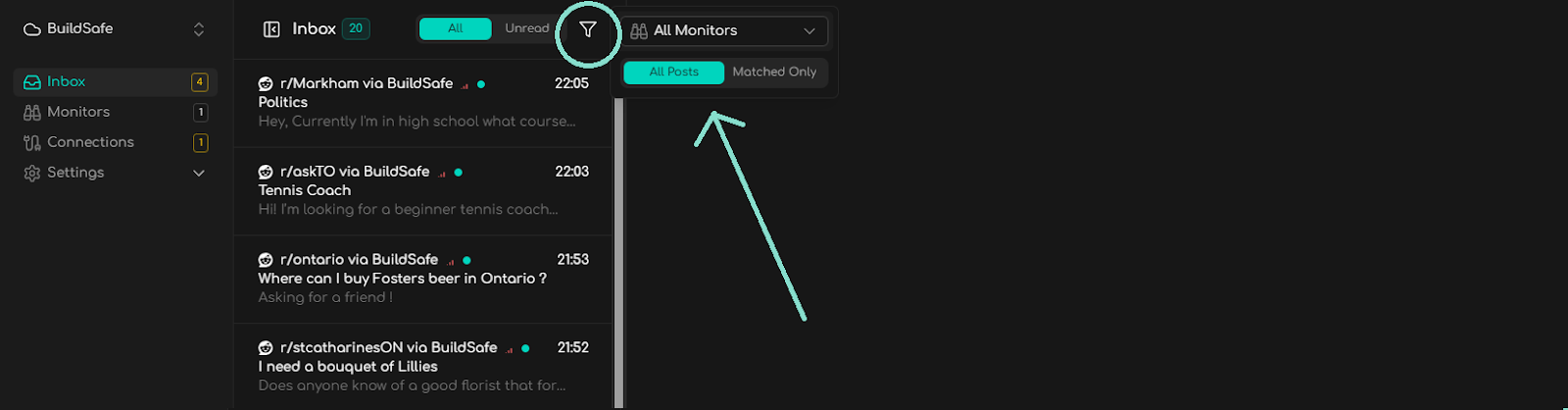
Use the Inbox toolbar to filter posts by:
- Monitor: View matches from all Monitors or a specific Monitor.
- Workflow Status: Filter by
Pending,Accepted,Replied, orRejected. - Read Status: Filter by
UnreadorRead. - Matched vs. All Posts: Toggle between viewing only your Matched Posts or All Posts that a Monitor scanned on your behalf (including non-matched posts). You can also export results to CSV.